Hi, RL Design Fans..
Pie kabare?? Apik apik wae kan?
Setelah agak beberapa hari vakum ni, akhirnya saya bisa buat postingan baru juga nih..
Yah, akhir2 ni lagi sibuk-sibuknya dengan berita Nazaruddin yang akan dijatuhi hukuman.. Tapi ga terlalu urus lah, biarlah yang berwenang mengurusnya.. Nah, kita cuma mengurus bagaiamana menambah wawasan design kita..
Nah, kali ini saya ingin berbagi dengan RL Design Fans semua tentang koleksi logo design berbasis warna hitam putih..
Ya, lumayan lah untuk menambah perbendaharaan
RL Design Fans semua..
Langsung cekidot aja nih...
Google Translator
Jumat, 20 April 2012
Sabtu, 14 April 2012
5 Cara Bisnis Design Grafis lewat Internet
Hi, RL Design Fan..
Siapa yang tak kenal internet zaman sekarang..
Sebagian besar masyarakat Indonesia pasti memakainya. Setiap orang dari pelaku bisnis yang berbeda..
Baik properti, agen makanan, prabot rumah tangga, sampai designer graphic..
Berikut saya tampilkan 5 langkah / cara bagi Designers Grafis untuk meraup uang lewat internet khusus buat RL Design Fan smua..
Siapa yang tak kenal internet zaman sekarang..
Sebagian besar masyarakat Indonesia pasti memakainya. Setiap orang dari pelaku bisnis yang berbeda..
Baik properti, agen makanan, prabot rumah tangga, sampai designer graphic..
Berikut saya tampilkan 5 langkah / cara bagi Designers Grafis untuk meraup uang lewat internet khusus buat RL Design Fan smua..
Rabu, 04 April 2012
Sejarah Mac OS X Sampai 10 TahunIni
Tanpa peringatan khusus, sistem operasi Mac OS X buatan Apple yang dikenal punya kemampuan grafis sangat baik telah berusia satu dekade. Debutnya secara formal baru dilakukan pada 24 Maret 2001 dan sejak saat itu telah keluar beberapa versi dengan nama kode yang khas yakni bermacam jenis kucing besar.
Dalam sepuluh tahun sudah tujuh versi dirilis dan satu direncanakan akhir tahun ini.Masing-masing Cheetah, Puma, Jaguar, Panther, Tiger, leopard, Snow leopard, dan akan segera menyusul Lion. Awalnya nama kodetersebut hanya digunakan untuk kepentingan internal, namun justru menjadi sebutan yang akrab bagi para pecinta Mac.
Mac OS X sendiri sebenarnya sudah mulai dikembangkan sejak tahun 1994 denganproyek Copland di Apple. Kemudian platform tersebut disatukan dalam Apple Rhapsody developer Release setelah Apple mengakuisis penuh NeXT yang didirikan Steve Jobs pada 1996. Rhapsody berkembang menjadi Mac OS X Server (Hera) pada 1999. Versipublik beta dengan nama Kodiak keluar 30 September 2002 dan enam bulan kemudian baru dirilis versi pertama untuk publik.
Berikutperjalanan Mac OS X dariwaktukewaktu.
Mac OS X 10.7 Lion
Dalam sepuluh tahun sudah tujuh versi dirilis dan satu direncanakan akhir tahun ini.Masing-masing Cheetah, Puma, Jaguar, Panther, Tiger, leopard, Snow leopard, dan akan segera menyusul Lion. Awalnya nama kodetersebut hanya digunakan untuk kepentingan internal, namun justru menjadi sebutan yang akrab bagi para pecinta Mac.
Mac OS X sendiri sebenarnya sudah mulai dikembangkan sejak tahun 1994 denganproyek Copland di Apple. Kemudian platform tersebut disatukan dalam Apple Rhapsody developer Release setelah Apple mengakuisis penuh NeXT yang didirikan Steve Jobs pada 1996. Rhapsody berkembang menjadi Mac OS X Server (Hera) pada 1999. Versipublik beta dengan nama Kodiak keluar 30 September 2002 dan enam bulan kemudian baru dirilis versi pertama untuk publik.
Berikutperjalanan Mac OS X dariwaktukewaktu.
Mac OS X Cheetah
CEO Apple Steve Jobs menyebut Mac OS X sebagai platform penting bagi Apple setelah sistem operasi Macintosh pertama merevolusi industri pada tahun 1984. Saat diluncurkan 25 September 2001, versi pertama didukung 350 aplikasi di antaranya iMovie 2, iTunes, dan AppleWorks 6.1. Harganya waktu itu 129 dollar AS dan dipakai pada iMac, iBook, Power Macintosh G3, Power Mac G4, Power Mac G4 Cube, dan PowerBook.
Mac OS X 10.1 Puma
Apple pertama kali memperkenalkan versi kedua Mac OS X pada Juli 2001 pada acara Macworld dan baru dirilis 25 September 2011. Ini mungkin versi yang selisihnya paling cepat dari pendahulunya karena hanya enambulan. Apple meningkatkan user interface dengan nama Aqua dan memperluas dukungan terhadap media dan perangkat seperti DVD, MP3, CD, printer, dankamera digital. Hargasatu unit lisensi saat itu juga 129 dollar AS.
Mac OS X 10.2 Jaguar
Versi ketiga ini diperkenalkan pada Agustus 2002 namun baru tersedia di pasar 23 Agustus 2002. Untuk pertama kali, nama kodenya dipakai dalam media marketing. Ada 150 fitur baru antara lain iChat, filter junk mail, dan teknologi jaringan yang lebih baik. Dalam seminggu pertama, terjual 100.000 copy. Ada dua paket yang tersedia seharga 129 dollar AS dan paket keluarga untuk lima orang hanya 199 dollar AS.
Mac OS X 10.3 Panther
Keluarnya versi keempat ini selisih lebih dari satu tahun dengan versi sebelumnya karena dirilis 24 Oktober 2003. Ada 150 fitur baru ditambahkan pada Mac OS X 10.3 ini, antara lain Finder dengansatuaksesklikke file dan folder, fiturtampilan Expose, dan iChat AV untuk video konferensi. Tersedia pula versi Mac OS X Server 10.3. Harganya 129 dollar AS sedangkan untuk server 499 dollar AS untuk 10 kliendan 999 dollar AS untuk jumlah klien tak terbatas.
Mac OS X 10.4 Tiger
Untuk versi kelima, selisih waktu dengan versi keempat malah lebih panjang lagi karena baru keluar April 2005. Namun, ada 200 fitur baru yang menarik seperti fungsi pencarian dengan Spotlight dan Dashboard yang mendukung widget untuk pertama kalinya.
Mac OS X Leopard
Leopard memulai debutnya pada oktober 2007 dengan perbaikan pada fitur pencarian file dengan Stacks, desainulang Finder, Quick Look, dan untuk pertama kali memperkenalkan backup Time Machine.
Mac OS X 10.6 Snow Leopard
Snow Leopard yang muncu Agustus 2009 mungkin perbaruan besar -besaran secara sistem keseluruhan karena Apple menyatakan telah memperbarui 90 persen dari 1000 proyek yang terlibat dalam pengembangan Mac OS X. Ukurannya hanya setengah versi sebelumnya karena cukup dengan media penyimpan 7 GB. Telah mendukung prosesor 64 bit.
CEO Apple Steve Jobs menyebut Mac OS X sebagai platform penting bagi Apple setelah sistem operasi Macintosh pertama merevolusi industri pada tahun 1984. Saat diluncurkan 25 September 2001, versi pertama didukung 350 aplikasi di antaranya iMovie 2, iTunes, dan AppleWorks 6.1. Harganya waktu itu 129 dollar AS dan dipakai pada iMac, iBook, Power Macintosh G3, Power Mac G4, Power Mac G4 Cube, dan PowerBook.
Mac OS X 10.1 Puma
Apple pertama kali memperkenalkan versi kedua Mac OS X pada Juli 2001 pada acara Macworld dan baru dirilis 25 September 2011. Ini mungkin versi yang selisihnya paling cepat dari pendahulunya karena hanya enambulan. Apple meningkatkan user interface dengan nama Aqua dan memperluas dukungan terhadap media dan perangkat seperti DVD, MP3, CD, printer, dankamera digital. Hargasatu unit lisensi saat itu juga 129 dollar AS.
Mac OS X 10.2 Jaguar
Versi ketiga ini diperkenalkan pada Agustus 2002 namun baru tersedia di pasar 23 Agustus 2002. Untuk pertama kali, nama kodenya dipakai dalam media marketing. Ada 150 fitur baru antara lain iChat, filter junk mail, dan teknologi jaringan yang lebih baik. Dalam seminggu pertama, terjual 100.000 copy. Ada dua paket yang tersedia seharga 129 dollar AS dan paket keluarga untuk lima orang hanya 199 dollar AS.
Mac OS X 10.3 Panther
Keluarnya versi keempat ini selisih lebih dari satu tahun dengan versi sebelumnya karena dirilis 24 Oktober 2003. Ada 150 fitur baru ditambahkan pada Mac OS X 10.3 ini, antara lain Finder dengansatuaksesklikke file dan folder, fiturtampilan Expose, dan iChat AV untuk video konferensi. Tersedia pula versi Mac OS X Server 10.3. Harganya 129 dollar AS sedangkan untuk server 499 dollar AS untuk 10 kliendan 999 dollar AS untuk jumlah klien tak terbatas.
Mac OS X 10.4 Tiger
Untuk versi kelima, selisih waktu dengan versi keempat malah lebih panjang lagi karena baru keluar April 2005. Namun, ada 200 fitur baru yang menarik seperti fungsi pencarian dengan Spotlight dan Dashboard yang mendukung widget untuk pertama kalinya.
Mac OS X Leopard
Leopard memulai debutnya pada oktober 2007 dengan perbaikan pada fitur pencarian file dengan Stacks, desainulang Finder, Quick Look, dan untuk pertama kali memperkenalkan backup Time Machine.
Mac OS X 10.6 Snow Leopard
Snow Leopard yang muncu Agustus 2009 mungkin perbaruan besar -besaran secara sistem keseluruhan karena Apple menyatakan telah memperbarui 90 persen dari 1000 proyek yang terlibat dalam pengembangan Mac OS X. Ukurannya hanya setengah versi sebelumnya karena cukup dengan media penyimpan 7 GB. Telah mendukung prosesor 64 bit.
Mac OS X 10.7 Lion
Generasiterbaru yang diberinama Lion direncanakan akan dirilis akhir tahun ini. Namun, Apple telah mendistribusikan versi uji coba kepada beberapa mitra pengembang. beberapa fitur baru antara lain teknologi berbagi file secara nirkabel AirDrop dan desain ulang aplikasi Mail. Juga ada tool interface Launch Pad untuk menampilkan tampilan layar iPhone daniPad ke Mac. Platform ini juga akan mendukung penuh layar multitouch.
Rabu, 14 Maret 2012
20 Pekerjaan untuk Mahasiswa / Remaja
Hai RL Design Fan ...
Apa kabar ni? Baik kan?
Mungkin sebagian besar dari teman2 RL Design adalah seorang mahasiswa. Nah, sebagai seorang remaja yang sedang mengalami masa peralihan menuju ke tahap dewasa, pasti ada keinginan kita untuk mempunyai penghasilan sendiri. Ya kan? Ya kan?
Pasti ada (walaupun ga semua). Saya berani bilang begini, karena saya juga mengalami hal yang sama.
Tapi karena terbentuk jadwal kuliah, yah, terpaksa ga bisa kerja deh...
Tapi jangan takut, masih banyak profesi yang bisa ditekuni sebagai seorang remaja.
Ni dia, Cek-i-dot- aja deh :
Apa kabar ni? Baik kan?
Mungkin sebagian besar dari teman2 RL Design adalah seorang mahasiswa. Nah, sebagai seorang remaja yang sedang mengalami masa peralihan menuju ke tahap dewasa, pasti ada keinginan kita untuk mempunyai penghasilan sendiri. Ya kan? Ya kan?
Pasti ada (walaupun ga semua). Saya berani bilang begini, karena saya juga mengalami hal yang sama.
Tapi karena terbentuk jadwal kuliah, yah, terpaksa ga bisa kerja deh...
Tapi jangan takut, masih banyak profesi yang bisa ditekuni sebagai seorang remaja.
Ni dia, Cek-i-dot- aja deh :
Kamis, 08 Maret 2012
Mengenal Brosur
Kali ini kita akan membahas tentang Brosur..
Teman2 rioDesign pasti ga asing lagi dengan namanya brosur kan? ya, kadang kita sebut ini flyer, selebaran, atau sebagainya. Tapi apa pun itu, sebagai designer kita perlu tau bagaimana mendesign brosur yang baik.. Bagaimana kita mencari minat para konsumen / masyarakat dari brosur yang kita design tersebut, karena brosur dibuat dengan tujuan untuk memasarkan suatu brand, produk, atau event tertentu. So, otomatis kita harus bisa mencari peminat/pembaca supaya tertarik dari produk yang ditawarkan..
Berikut adalah defenisi brosur :
-Menurut definisi UNESCO, brosur adalah terbitan tidak berkala yang tidak dijilid keras, lengkap (dalam satu kali terbitan), memiliki paling sedikit 5 halaman tetapi tidak lebih dari 48 halaman, di luar perhitungan sampul.
- Menurut brosurkilat.com, Brosur adalah alat promosi yang terbuat dari kertas yang di dalamnya terdapat sejumlah informasi dan penawaran mengenai jasa atau produk.
- Menurut Rio Andrew, Brosur adalah media komunikasi visual yang dipakai untuk memperkenalkan atau mempromosikan suatu brand, produk, image, event dan lain sebagainya yang menjadi perwakilan suatu perusahaan atau organisasi tertentu.
Tujuan dari brosur :
Teman2 rioDesign pasti ga asing lagi dengan namanya brosur kan? ya, kadang kita sebut ini flyer, selebaran, atau sebagainya. Tapi apa pun itu, sebagai designer kita perlu tau bagaimana mendesign brosur yang baik.. Bagaimana kita mencari minat para konsumen / masyarakat dari brosur yang kita design tersebut, karena brosur dibuat dengan tujuan untuk memasarkan suatu brand, produk, atau event tertentu. So, otomatis kita harus bisa mencari peminat/pembaca supaya tertarik dari produk yang ditawarkan..
Berikut adalah defenisi brosur :
-Menurut definisi UNESCO, brosur adalah terbitan tidak berkala yang tidak dijilid keras, lengkap (dalam satu kali terbitan), memiliki paling sedikit 5 halaman tetapi tidak lebih dari 48 halaman, di luar perhitungan sampul.
- Menurut brosurkilat.com, Brosur adalah alat promosi yang terbuat dari kertas yang di dalamnya terdapat sejumlah informasi dan penawaran mengenai jasa atau produk.
- Menurut Rio Andrew, Brosur adalah media komunikasi visual yang dipakai untuk memperkenalkan atau mempromosikan suatu brand, produk, image, event dan lain sebagainya yang menjadi perwakilan suatu perusahaan atau organisasi tertentu.
Tujuan dari brosur :
- Banyak sekali kegunaan dari brosur selain untuk media promosi
- Mengenalkan produk perusahaan Anda.
- Memberitahukan potongan harga atau promo yang sedang di jalankan oleh perusahaan Anda.
- Memberitahukan katalog dari produk perusahaan Anda.
- dll
Berikut saya tampilkan beberapa inspirasi brosur atau sejenisnya yang telah dibuat oleh beberapa designers lokal.
![]() |
| Brosur 2 - http://riodesign-web.blogspot.com |
Best Regards,
rioDesign [ Belajar Design dari Newbie to Master]
Referensi :
- id.wikipedia.org
- brosurkilat.com
rioDesign [ Belajar Design dari Newbie to Master]
Referensi :
- id.wikipedia.org
- brosurkilat.com
Teman-teman boleh meng-copy artikel saya ini untuk keperluan teman2 (tugas sekolah, atau dijadiian postingan di blog teman2), tapi harus ada tertera link kami www.7designers.blogspot.com sebagai referensi ya.. Trims :)
Anda juga mungkin ingin membaca ini :
- Membuat Kumis dan Jenggot asli dari Photoshop
Silakan beri komentar anda disini.... Atau tulis pertanyaan anda sekitar blog kami di Contact Me atau FAQ.
Minggu, 04 Maret 2012
Membuat Bayangan Di atas air by Rio Andrew
Preview Final Result
Artis Name
: Rio Andrew M Purba
Software Design : Photoshop CS 2 ke atas.
Durasi Design : 30 s/d 45 menit
Model Design : Teguh ( Teman Kampus ku, klo ada yang mau kenalan, boleh kok. Hahahaha )
Design Assets : - Foto teman saya/Model Design (download)
- Gambar Kolam (download)
Software Design : Photoshop CS 2 ke atas.
Durasi Design : 30 s/d 45 menit
Model Design : Teguh ( Teman Kampus ku, klo ada yang mau kenalan, boleh kok. Hahahaha )
Design Assets : - Foto teman saya/Model Design (download)
- Gambar Kolam (download)
Hi RL Design Fans..
Mau dikit sharing ni sebelum saya bagiin trik design kita kali ini.
Semalam tuh sungguh hari yang melelahkan, karena saya musing-musing keliling Medan untuk nyari dimana SMAN12 Medan. Loh Mau apa? Iya, anak SMAN 12 Medan akan mengadakan PENSI dalam waktu dekat, jadi mereka pesan design Logo, brosur, badge name, and design baju.
Untuk design logo, brosur, badge name nya udah saya kasi dari jauh jauh hari. Kalau Baju nya baru tadi saya kasi. Nah muter-muter nyariin akhirnya ketemu juga. Tapi rasa lelah terbayar sudah, karena dana langsung cair.. J :D Siapa yang mau saya traktir? Silakan daftar di kotak Komentar di bawah Posting ini. Hahaha. Pulang dari situ, saya langsung pergi menuju ke tempat makan bersama sekretaris saya (hehehe), ngenyangi perut dulu, soalnya udah sore.. Tapi tiba-tiba setelah siap ma’am, ujan deras turun, padahal jam udah nunjukin jam Setngah Tujuh. Wah, kepaksa nungguin ujan reda deh.. Belum lagi nganterin sekretaris pulang. Aduh, singkat cerita, sampe dirumah tu jam9.
Sampe rumah, saya makan lagi [hehehe] terus bersih-bersih, nonton bola dulu Arsenal Vs Liverpool. Haah, siap jam 10. Saya teringat akan RL Design. Wah harus publish 1 Tutorial ni. Karena saya ga boleh buat sedih para RL Design Fans . Mereka pasti udah nunggu-nunggu 1 Tutorial terbaru keluar. Tapi apa judul yang enak ya? Saya teringat kepada teman SMK saya . 2 Hari yang lalu dia SMS saya minta ajarin bagaimana membuat bayangan orang diatas kolam renang. Nah, langsung saya buat aja deh. Sekitar 1 jam setengah selesai deh ni tutorial. Tapi karena semalam dah ngantuk kali, jadi siang ini deh baru bisa saya upload, karena saya harus ibadah dulu paginya. Ok Langsung aja.
Check it Out ya !!
1. Langsung aja, Langkah pertama download dulu semua design assets yang ada diatas semua gratis ( bila ada proses penginputan Chapta atau Kode dalam proses mendownload, lakukan saja. Hal itu digunakan untuk sistem keamanan saja. Gapapa kok ]. Setelah itu, buka Gambar Kolam dan Gambar Teman Saya ke photoshop Sobat-RL-Design. Sobat-RL-Design boleh gunain foto sendiri juga.
2. Selanjutnya pada foto Teman saya, lakukan penyeleksian. Boleh dari Lasso Tool, boleh dari Pen Tool. Tapi buat Sobat-RL-Design yang masih new bie, pake aja Lasso Tool.
Sabtu, 03 Maret 2012
Contact Me
Hai sobat RL Design..
Apa kabar?
Saya harapkan kabar sobat RL Design semua sehat selalu.
amin.
Oia, ini adalah layanan Contact Me. Sobat RL Design semua bisa menuliskan Request Tutorial di sini. Tinggal tuliskan request anda di kolom Posting dibawah ini. Setelah saya membacanya, saya akan menanggapi kemudian saya segera mengerjakan pembuatan tutorial terkait request Anda. Dan dalam waktu 1 atau 2 hari, tutorial yang Anda request sudah terpampang di blog kesayang kita ini.
Sobat RL Design juga bisa memberi masukan positif untuk blog ini melalui kolom Post Dibawah.
Cukup sekian dulu ya.
Bila ada pertanyaan, silakan tanya ada melalui kolom Posting dibawah ini.
Terimakasi.
Salam RL Design.
Apa kabar?
Saya harapkan kabar sobat RL Design semua sehat selalu.
amin.
Oia, ini adalah layanan Contact Me. Sobat RL Design semua bisa menuliskan Request Tutorial di sini. Tinggal tuliskan request anda di kolom Posting dibawah ini. Setelah saya membacanya, saya akan menanggapi kemudian saya segera mengerjakan pembuatan tutorial terkait request Anda. Dan dalam waktu 1 atau 2 hari, tutorial yang Anda request sudah terpampang di blog kesayang kita ini.
Sobat RL Design juga bisa memberi masukan positif untuk blog ini melalui kolom Post Dibawah.
Cukup sekian dulu ya.
Bila ada pertanyaan, silakan tanya ada melalui kolom Posting dibawah ini.
Terimakasi.
Salam RL Design.
Jumat, 02 Maret 2012
About Me
Let me introduce my self..
My name is Rio Andrew, 19th years. I’m the young designer in Indonesia. You can call me Rio. I’m so interested in graphic designing. Why?? Because I can be what i want. What does it mean? So, the example is like this. In My Childhood, I wish i could be twins. But, it's so impossible. Then, i decided to learn about Graphic Design, so that i can duplicate my self in a pictures.
Hahahahaha ( l.o.l ) :-D...
So it’s just a simple reason how i begun to learn about design graphic. Then, i learn it again and again. I always sharpen my talent in design. And the result is not bad. In 2008, i was a 2nd rank in Open Design Competition in Medan City, Indonesia. And in 2008 too, i was a 3rd rank Student Design Competition in Medan City, Indonesia. Yes, it’s not a big achievement. But, it’s not a bad result, right? Now, I’m a college student in Medan. Beside that I also work in an Event Organizer in Medan, as a Creative Designer.
Ok, That’s all my simple introduction. I hope, we can be friends one another.
Don't forget to leave your comment in this blog, we need your suggestion..
Just Join this blog, and we will sharing all about design.
Oia, kepada para Designers di Indonesia, silakan tinggal kan comment Anda di blog ini ya,,
Kami membutuhkan saran dan masukan dari Anda...
Don't forget to leave your comment in this blog, we need your suggestion..
Just Join this blog, and we will sharing all about design.
Oia, kepada para Designers di Indonesia, silakan tinggal kan comment Anda di blog ini ya,,
Kami membutuhkan saran dan masukan dari Anda...
Thx, selamat bersukacita... :-)
Ty :)
Ty :)
Tampilan Baru United Designers
Hi United Designers Fan.
Ini adalah Wajah Baru dari United Designers.
United Designers yang sekarang mengganti nama menjadi RL Design, tampil lebih dinamis.
Teman2 semua juga bisa ngasi vote untuk web kesangan kita ini (ada di samping kanan Posting-an).
Dan yang lebih asyik nya ni, RL Design sekarang terkesan lebih cinta Indonesia.
Loh? Kenapa?
Jelas saja.. Karena sekarang RL Design sudah menggunakan posting-an bahasa Indonesia. Jadi lebih Touching Hearth para RL Design Fan.
Silakan nongkrong disini sepuasnya dimana dan kapan saja.
Bila ada masukan, mohon di comment aja di bawah ini ya.. :)
Thank you.
Bravo RL Design!!!
COWGIRL by Rio Andrew
Final Product
Artist Name : Rio Andrew
Software Design : Photoshop CS any series.
Durasi Design : Setengah Jam
Design Assets : Gambar Cowgirl1 (download)
Gambar Cowfirl2 (download)
Gambar Selotip (download)
Gambar Kertas1 (download)
Gambar Kertas2 (download)
Sebenarnya ini design yang udah lama saya buat. Waktu itu, adik saya minta ajarin buat design yang temanya Cowboy and Cowgirl. Nah, cerita nya kan ada lomba Design di SMANSA Lubuk Pakam.
Nah, untuk itu lah saya buat tutorial ini. Saya yakin dia pasti juara klo bawakan design ini, karena se-lating dia di sekolah gada yang mahir2 amat katanya. Ada sih yang jago, tapi ga jago2 amat. Esok harinya saya tanya, dia juara apa ga. Eh, taunya dia ga jadi ikut Kompetisi Design. Alasannya karena dia anak PaDus, dan dalam waktu yang bersamaan dengan kompetisi design, dia dipanggil kelapangan untuk ikuti Padus. Hadooww... Kemudian baru sekarang saya terpikir, daripada tutorial ini nganggur, lebih baik saya bagikan saja sama teman2 RL Design Fan semua. Tutorial ini emang saya design standart, karena emang ditujukan untuk adik saya yang pada saat itu belum mahir sekali design. Ntar, klo dibuat terlalu kompleks, takutnya dia ga bisa hapalin ni langkah-langkah nya pas kompetisi.Ok, lah. Kok malah curhat?? hahah
Langsung aja ya. Check It Out!
Senin, 20 Februari 2012
Your Avatar Graffiti on the Bricks
Now, we will discuss about how to make your graffiti picture on the bricks.
This is the example.

So, The first thing that you must prepare is your photo, bricks picture, and graffiti font style. And in this case, i use wings picture too. So, You can download them here..
Bricks Picture : download
Graffiti font style : download
Wings picture : download
Ok, let’s begin !
Kamis, 09 Februari 2012
Free Download : 7 Cool Brush in Photoshop
Hi United Designers !!
Because of the requests of United Designers Friends, I will share to you some of the Brushes Collection that we can use in Photoshop CS Series.
There are 7 brushes here. You can download it FREE.
Check it Out !
3. Decorate1 Brush [Download]
4. Decorate2 Brush [Download]
5. Animals Brush [Download]
NEW!!! Album Manager Baru di Ziddu!! Buruan rasakan serunya!! Klik Image DIBAWAH INI!!

6. Abstract Brush. It looks like grass or weeds. [Download]
7. Cracks Brush [Download]
That's all. You can download it FREE. Leave a Comment plizz :)
Keep Spirit in Design Guys!!
Rabu, 08 Februari 2012
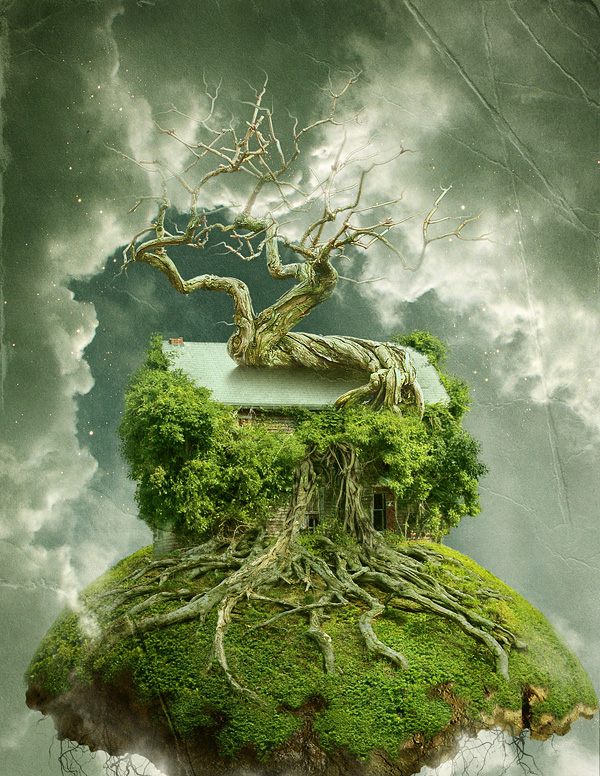
Create a Floating Over-Grown “Tree House” in Photoshop
Final Product
In this tutorial artist will combine several stock images to create a floating over-grown tree house in Photoshop.
Photoshop is great because it allows us to create scenes that wouldn’t otherwise be possible in real life. In this tutorial we will combine several stock images to create a floating over-grown tree house in Photoshop.
Tutorial Assets
The following assets were used during the production of this tutorial.
Selasa, 24 Januari 2012
Photoshop 3D Part 3
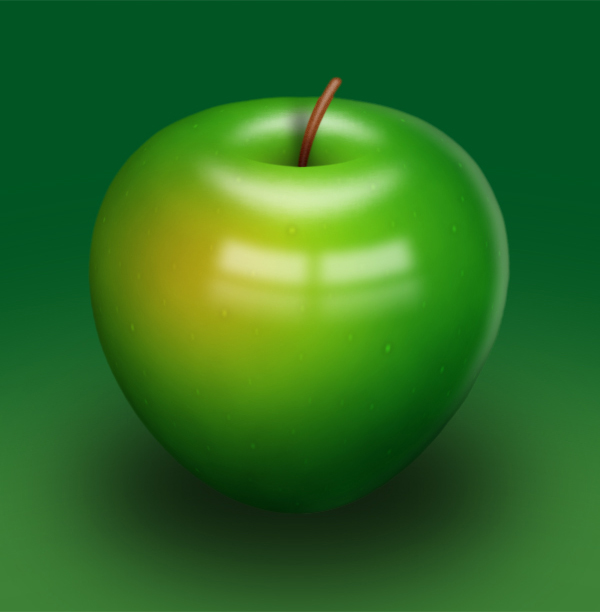
In this tutorial, I’ll be showing you how to draw a shiny green apple. We’ll have a look at various painting techniques throughout this tutorial. It will be fun and you’ll learn something new – let’s started!
Editor’s note: In an effort to introduce some of our older content to some of our newer readers we have resurrected this post from October 2008 for everyone to enjoy for the first or second time. Enjoy!
Step 1
Create a new document using the settings shown below.
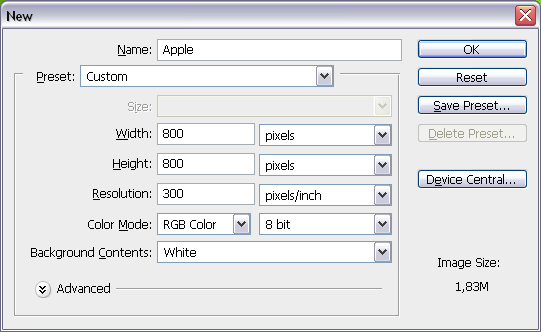
Step 2
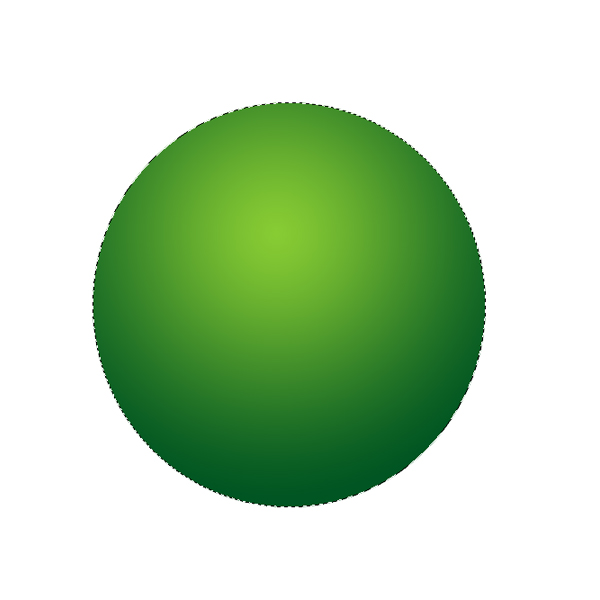
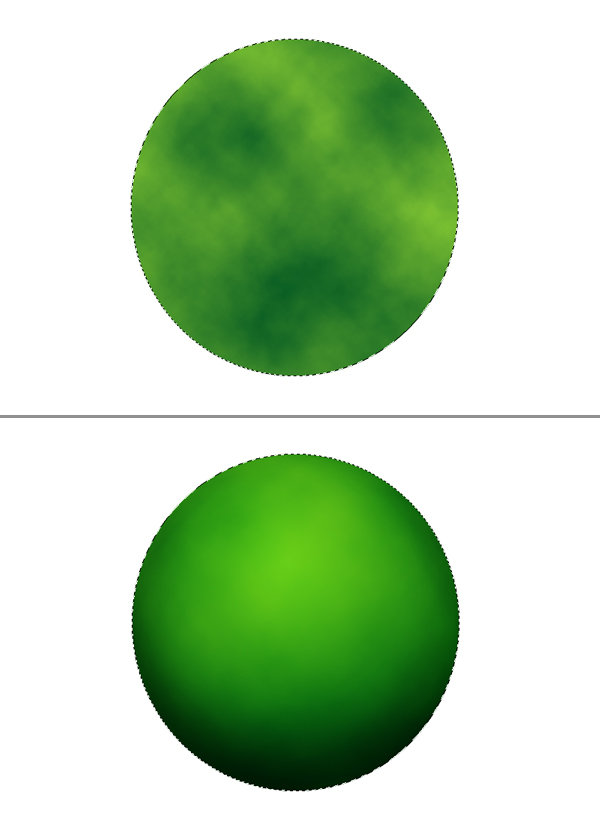
Create a new layer and name it "Apple." Grab the Elliptical Marquee Tool, make a selection as in the below image. Next, grab the Gradient Tool, then pick Foreground to Background and set Style to Radial. Make your Foreground Color #88cc33 and Background Color #005522. Fill the selection as shown.
Step 3
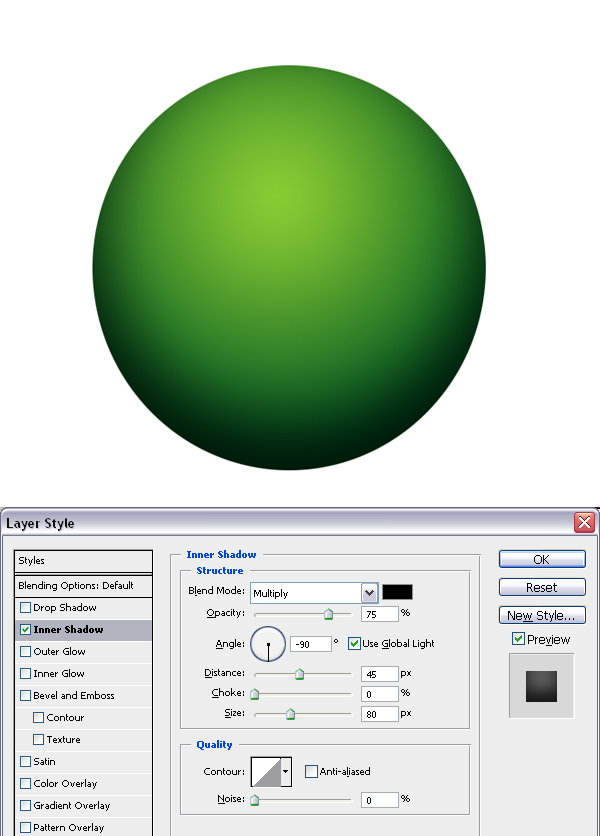
Apply the Inner Shadow layer style using these settings: Blend Mode set to Multiply, Opacity at 75%, Angle set to -90 degrees, Distance set to 45 pixels, and Size set to 80 pixels.
Step 4
Create a new layer and name it "Texture." Command-click the "Apple" layer to load the selection, if the selection is not still active. Use the colors from step one and go to Filter > Render > Clouds. Next go to Filter > Distort > Spherize, and set the Amount to 100% and Mode to Normal. This will give our simple texture a spheric look. Set the layer Blending Mode to Soft Light. Now we have some texture on the apple.
Step 5
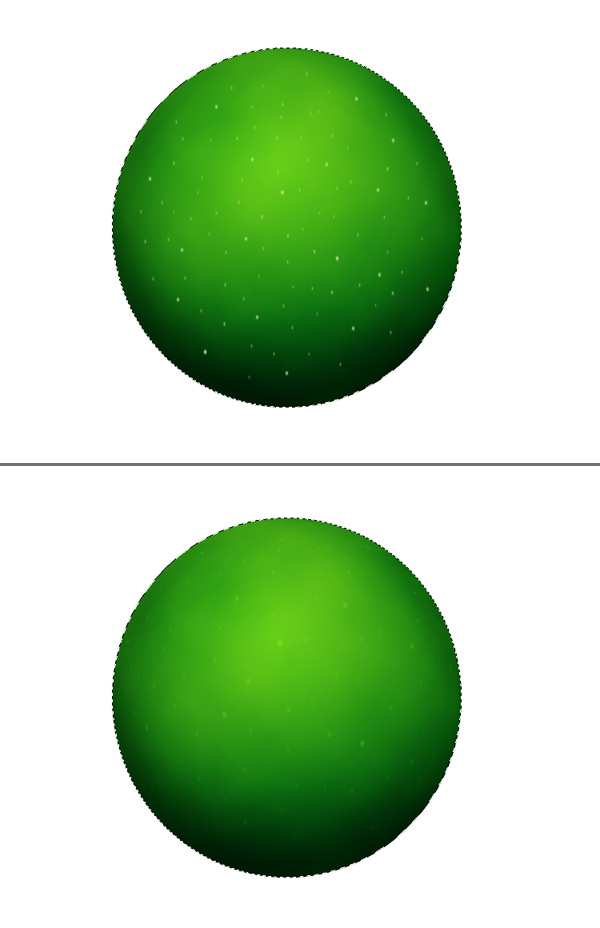
Create a new layer on top and name it "Dots." Get the Brush Tool and set the Foreground Color to #ccdd99. Also, set the Master Diameter to 5 and Hardness to 100, then create several dots by placing single clicks all around the apple.
Set the Master Diameter to 3 pixels and paint some more. Command-click the "Apple" layer to load the selection, if the selection is not still active. Go to Filter > Blur > Motion Blur, and set the Angle to 90 degrees and Distance to 3 pixels. Now go to Filter > Distort > Spherize, set the Amount to 100, set the Mode to Normal, and apply it. Set the layer Blending Mode to Overlay and Opacity at 50%. Hit Command + D to deselect.
Step 6
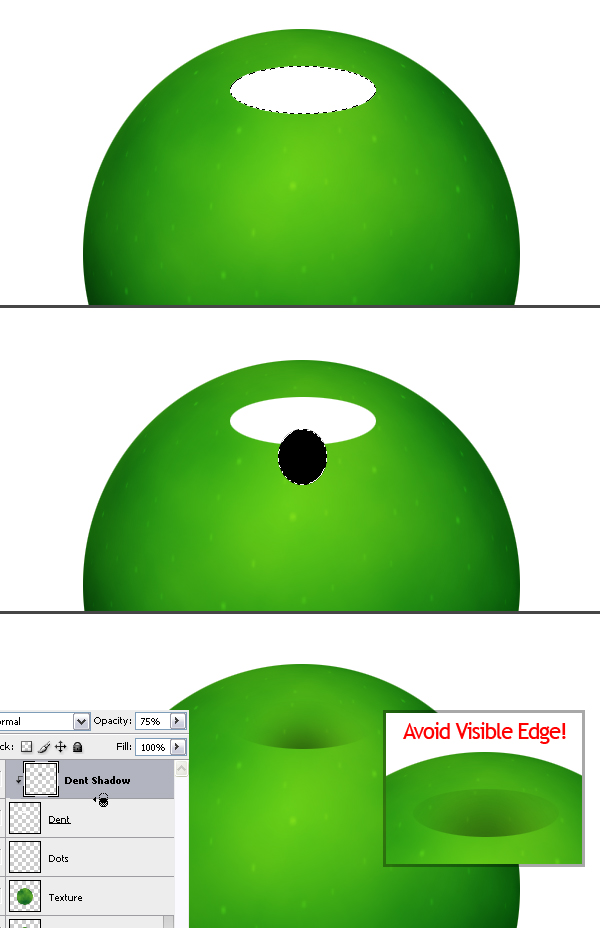
Create a new layer on top and name it "Dent." Grab the Elliptical Marquee Tool and make a selection, as shown in the below image, then fill it with white and Deselect. Create another layer and name this one "Dent Shadow." Make an elliptical selection, as in the image below, and fill it with black.
Alt-click on the line between the "Dent Shadow" and "Dent" layers in the Layers Palette. Deselect by hitting Command + D. This will define the "Dent" layer as a Clipping Mask for the "Dent Shadow" layer. Now go to the "Dent" layer in the Layers Palette and set the Blending Mode to Multiply.
Go back to the "Dent Shadow" layer and apply a Gaussian Blur filter with a radius of 17 pixels. Set the Layer Opacity at 75%. The size of the dent ellipse may vary in your document, so you can adjust the Radius of Gaussian Blur filter to avoid the visible top edge of the ellipse.
Step 7
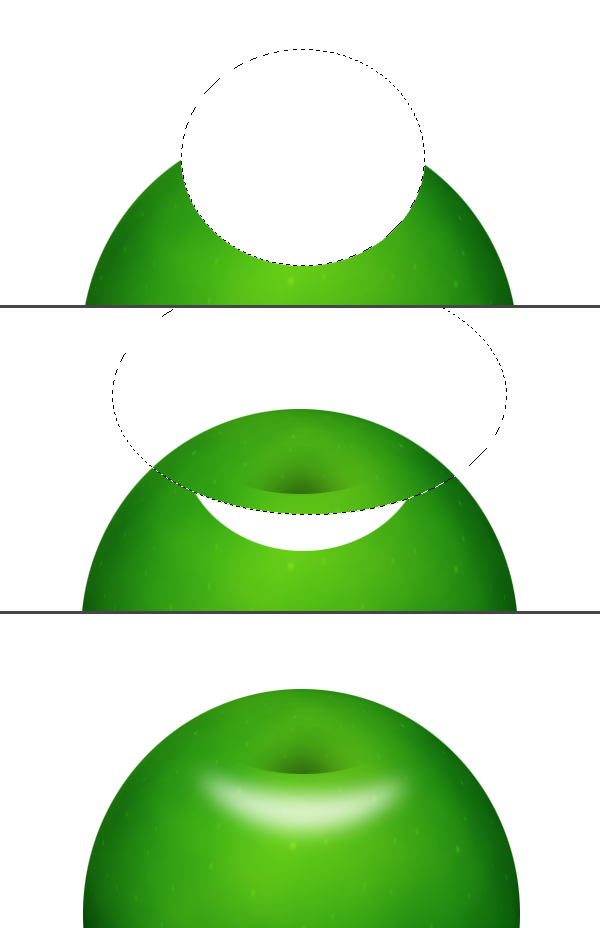
Now we’ll make some highlights. Create a new layer on top of the layer stack and name it "Highlight 1." Grab the Elliptical Marquee Tool and make a selection, as in the below image, and fill it with white. Now make a bigger elliptical selection as shown, then hit Delete to clear the selection. Deselect and go to Filter > Blur > Gaussian Blur, and apply with a Radius of 10 pixels.
Step 8
Create a new layer on top of the layer stack and name it "Highlight 2." Grab the Elliptical Marquee Tool and make a selection as shown, then fill it with white. Now make another elliptical selection as shown, then hit Delete to clear the selection. Also, don’t forget the select and clear the white piece below. Deselect and go to Filter > Blur > Gaussian Blur, then apply with a Radius of 8 pixels.
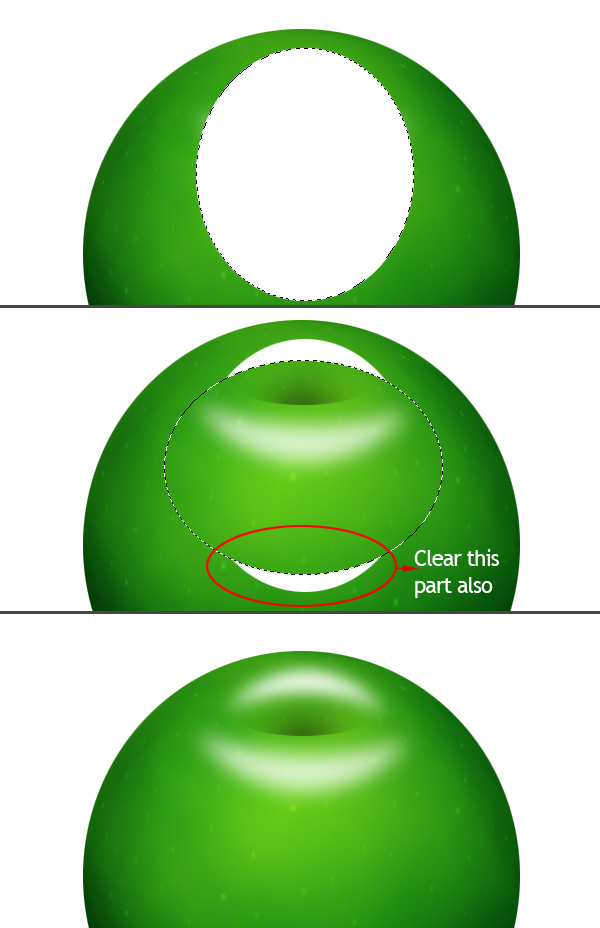
Step 9
Now create a new layer below "Highlight 1" layer and name it "Black." As you can tell from the name, we are going to fill it with black. Now select "Black," "Highlight 1," and "Highlight 2" layers in the Layers Palette and merge them by hitting Command + E. Go to Filter > Brush Strokes > Spatter. Set Spray Radius to 6 and Smoothness to 14. Command-click the "Apple" layer to load the selection, go to Select > Inverse and hit Delete to clear. Set layer Blending Mode to Screen. Deselect.
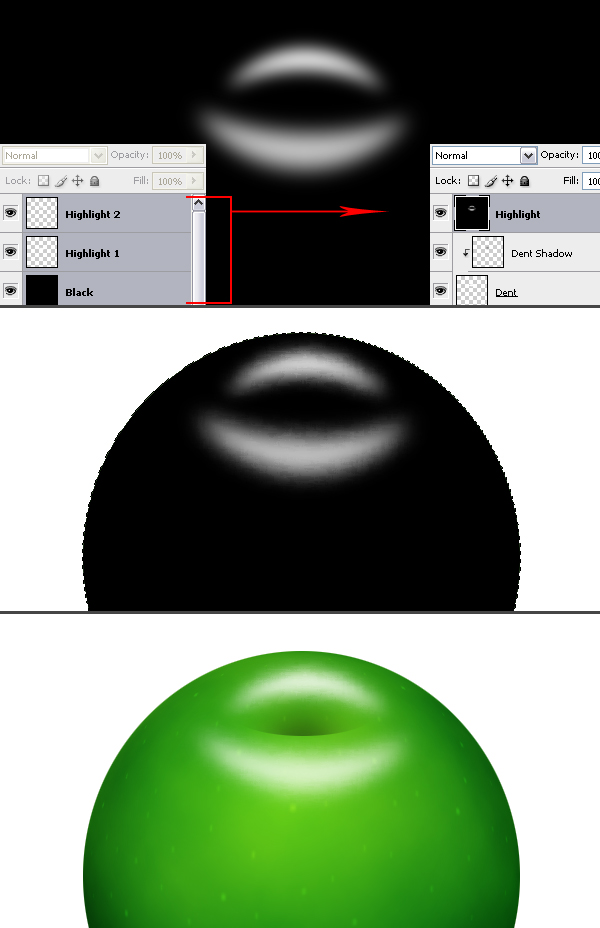
Step 10
Create a new layer above the "Dots" layer, and name it "Red." Grab the Elliptical Marquee Tool and make a selection as shown, then fill it with the color #ffbe00. Command-click the "Apple" layer to load the selection. Go to Filter > Blur > Gaussian Blur and apply with a Radius of 50 pixels. Next, set the layer Blending Mode to Hue. Now, deselect by hitting Command + D.
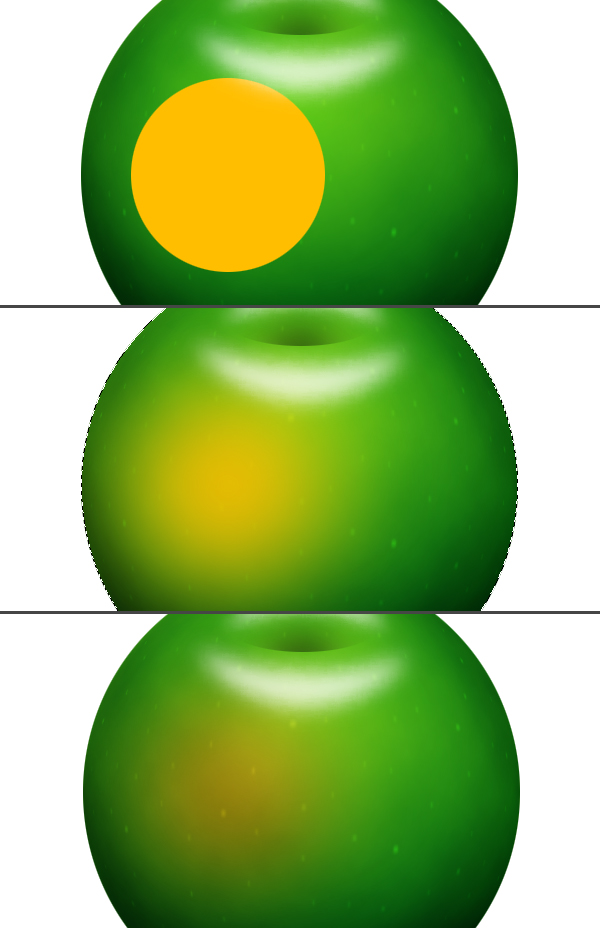
Step 11
Create a new layer below the "Red" layer, name it "Yellow." Grab the Elliptical Marquee Tool and make a selection as shown, then fill it with the color #fff444. Command-click the "Apple" layer to load the selection. Go to Filter > Blur > Gaussian Blur and apply with a Radius of 50 pixels. Next, set the layer Blending Mode to Hard Light and Opacity at 75%. Deselect by hitting Command + D.
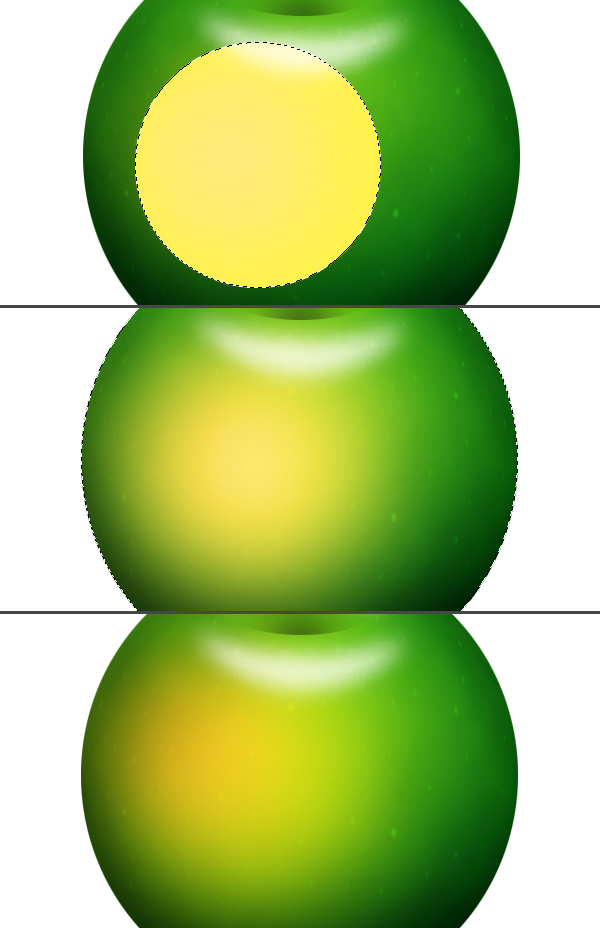
Step 12
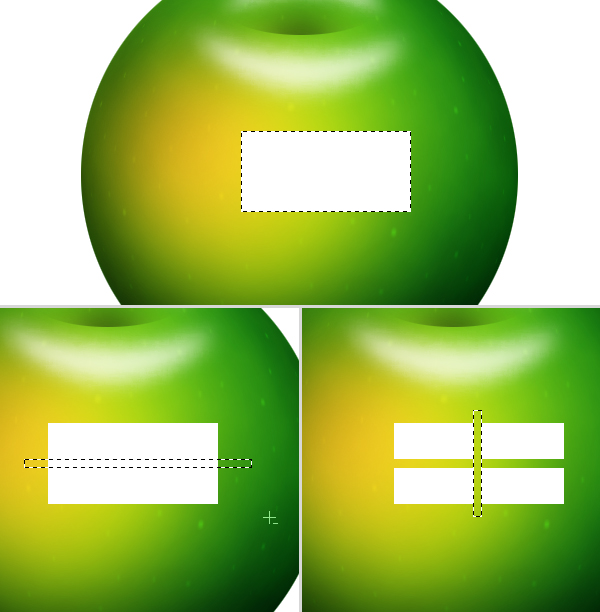
Create a new layer on top and name it "Reflection." Grab the Rectangular Marquee Tool and make a selection as shown, then fill it with white. We’ll make a window reflection out of this rectangle. So select two rectangular areas as shown, then clear them.
Step 13
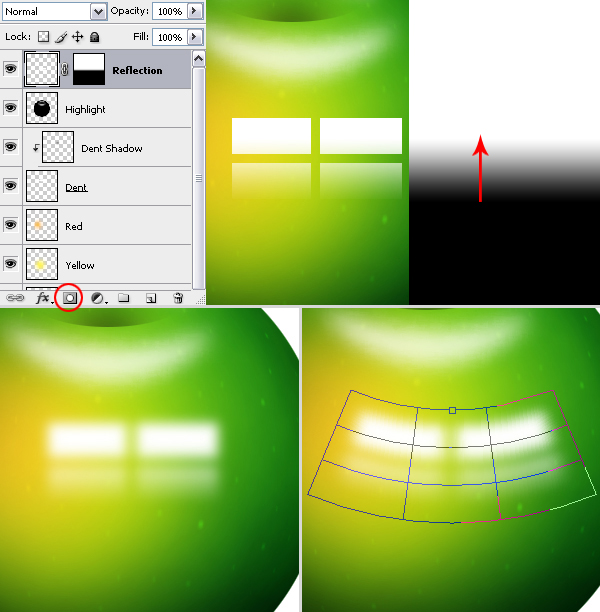
Go to the Layers Palette and add a Layer Mask to the "Reflection" layer by clicking the Add Layer Mask button. Grab the Gradient Tool, set it to Linear Gradient. Fill the layer Mask with the gradient, as you can see in the below image.
The Layer Mask is selected at the moment, click the "Reflection" layer thumbnail to go back to the layer. Now, go to Filter > Blur > Gaussian Blur and apply with a Radius of 8 pixels. Go to Edit > Transform > Warp, and select Arc from the presets list, then set the Bend to -20%.
Step 14
Create a new layer on top and name it "Backlight." Command-click the "Apple" layer thumbnail and fill the selection with white. Make sure the Marquee Tool is selected, then move the selection about 10 pixels left using the Left Arrow key. Now, hit Delete to clear.
Command-click the "Apple" layer again to load the selection, then go to Filter > Blur > Gaussian Blur, and apply with a Radius of 7 pixels. Hit Command + D to deselect. Grab the Eraser Tool, then set the Master Diameter to 270 pixels and Hardness at 0%. Erase the lower part of the backlight, as you can see in the below image.
Step 15
Create a new layer and name it "Stalk." Grab the Pen Tool, set to Paths in the tools options. Draw a curve for the stalk of the apple. Now, grab the Brush Tool and open the Brushes Palette. Under Shape Dynamics, set the Dynamic Control for Size to Fade. Set the Steps for Size Fade to 70 and set Minimum Brush Diameter to 20%. Under Brush Tip Shape, set the Diameter to 14 pixels and Hardness to 100%. Now, set the Foreground Color to #884411.
Go to Paths Palette, open the Paths Palette pop-up menu (click the triangle in the upper right to open) and choose Stroke Path, set the Tool to Brush and hit OK. Click somewhere outside the path in the Paths Palette. Command-click the "Dent" layer thumbnail in the Layers Palette to load its selection.
Grab the Rectangular Marquee Tool, then while holding the Shift key, make a selection that covers the upper part of the stalk. Go to Select > Inverse, then hit Delete to clear the lower exceeding part of the stalk, and deselect.
The path you have drawn is stored in the Paths Palette as a "Work Path." It stays there until you draw another path, then the new path you draw will be your "Work Path." If you want to keep the existing path before you draw a new one, you can give it a name by double-clicking on the path. Thus you won’t loose it when you draw a new one. If you want the path to disappear in your document, then go to Paths Palette and click somewhere outside the path in the Paths Palette.
Step 16
Create a new layer and name it "Stalk Highlight." Grab the Brush Tool and set the Master Diameter to 5 pixels. Set the Foreground Color to white. Now go to the Paths Palette, make sure Work Path is selected, open the Paths Palette pop-up menu, then choose Stroke Path, set Tool to Brush, and hit OK.
Command-click the "Stalk" layer thumbnail in the Layers Palette to load its selection. Go to Filter > Blur > Gaussian Blur and apply with a Radius of 1 pixel. Set the layer Opacity at 40%. Select the "Stalk" layer in the Layers Palette, then go to Filter > Noise > Add Noise. Set the Amount at 3%, set Distribution to Uniform, make sure Monochromatic is checked. Now, deselect by hitting Command + D.
Grab the Burn Tool, and using a soft brush (I set Master Diameter to 65 pixels and Hardness to 0%), make the bottom part of the stalk darker.
Step 17
Create a new layer below the "Stalk" layer and name it "Stalk Shadow." Grab the Rectangular Marquee Tool and make a selection, as in the image below. Fill it with black and Deselect. Go to Edit > Transform > Perspective and tweak the perspective of the layer as shown.
Go to Filter > Blur > Gaussian Blur, set the Radius to 7 pixels, and apply. Grab the Eraser Tool, and using a soft brush, clear the top part of the shadow. Next, Command-click the "Dent" layer to load the selection. Grab the Rectangular Marquee Tool, then while holding the Shift key, make a selection that will cover the top part of the shadow. Now go to Select > Inverse and hit Delete to clear. Deselect and set the Layer Opacity to 60%.
Step 18
Now we can make the finishing touches before we merge the layers. First, I’ll fill the background with the color #004400. Next, I made some minor changes. I set the Opacity of the "Highlight" layer at 85%, "Yellow" at 35%, "Red" at 85%, "Dent Shadow" at 95%, "Backlight" at 60%, "Reflection" at 55%.
I applied an Inner Glow Layer Style to the "Apple" layer to make the edges a little bit darker using these settings: Blend Mode of Multiply, Opacity set at 30%, Size set to 20 pixels, and Color set to #003300. I also changed the "Apple" layer Inner Shadow Opacity to 45%.
Finally, I applied an Outer Glow layer style to the "Dots" layer with these settings: Blend Mode set to Multiply, Opacity at 60%, Color set to #2b2b2b, and Size set to 8 pixels. Now select all the layers except the "Background" layer in the Layers Palette, then go to Layer > New > Group From Layers, and name the group "Apple."
Step 19
Create a new layer below the "Apple" group and name it "Shadow." Grab the Elliptical Marquee Tool and make a selection as shown, then fill it with black. Deselect and go to Filter > Blur > Gaussian Blur, and apply with a Radius of 40 pixels.
Step 20
Create a new layer above the "Background" layer and name it "Light." Grab the Elliptical Marquee Tool and make a selection as shown, then fill it with the color #338833. Deselect, then go to Filter > Blur > Gaussian Blur, and apply with a Radius of 75 pixels.
Step 21
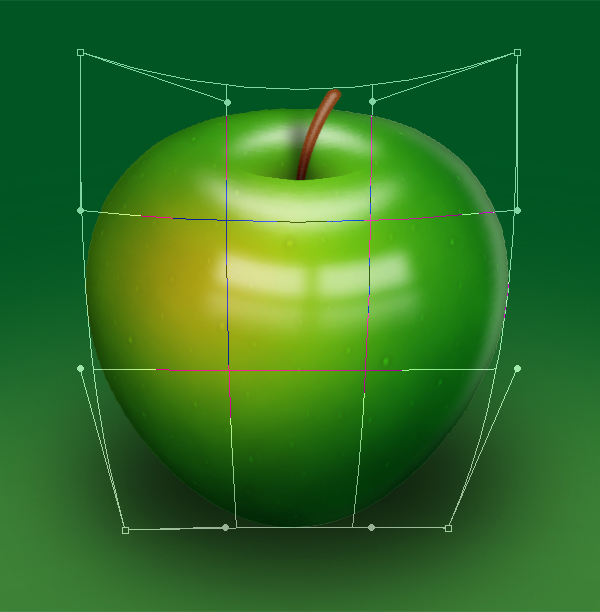
Now we have our apple ready but it looks too much like a sphere, but you can give it an apple shape using the Warp transform. Right-click the "Apple" group and merge it. Go to Edit > Transform > Warp and distort it to give it an apple shape.
Conclusion
You’ll see some distortion on the edges which are caused by the Warp transform. To get rid of them Command-click the "Apple" layer, go to Select > Modify > Feather, and set the Radius to 1 pixel. Next, go to Select > Inverse and hit Delete three or four times to clear the distorted area from the edges. And you finished!
Thanks to Eren Goksel![]()
Langganan:
Postingan (Atom)


.png)